2 different changes are often confused: converting your existing number from a physical SIM to an eSIM, or keeping two separate lines active on one iPhone. Many compatible iPhones support either setup, but the exact route depends on the iPhone model, region, carrier, plan, and carrier-lock status.
To switch SIM technology safely, keep the original SIM available, confirm carrier support, activate the replacement line, and test calls, texts, mobile data, and the displayed number before removing anything.
Key facts
- 📱 A physical SIM is removable hardware; an eSIM is a carrier profile installed digitally.
- 🔁 The path Settings > Cellular > Convert to eSIM appears only when the carrier enables it for the line.
- 🧾 A QR code, carrier app, nearby-iPhone transfer, or manual details may be required instead.
- ⚠️ Keep the old SIM until calls, texts, mobile data, and the displayed number work on the replacement line.
Can you switch between a physical SIM and eSIM on iPhone?
Or yes, a compatible iPhone can use a physical SIM, an eSIM, or two separate active lines, although the available setup depends on the model, market, carrier, plan, and lock status. An eSIM is a digital carrier profile installed on the phone, while a physical SIM is a removable card.
Switching SIM technology does not automatically duplicate one phone number on two SIM profiles. The carrier account controls the number and plan. A successful conversion commonly deactivates the original physical SIM when the eSIM takes over.
Or separate these four situations before touching the settings:
- Same-line conversion: the existing physical SIM number moves to an eSIM on the same iPhone.
- New eSIM activation: a carrier adds a new line through a QR code, app, or manual details.
- Transfer to another iPhone: the number moves from the old phone to the new phone.
- eSIM replacement: the carrier issues a physical SIM for an existing eSIM line.
Apps, photos, device-stored contacts, and messages normally remain on the iPhone because changing the SIM profile does not erase the device. Contacts stored directly on the old SIM require separate handling.
One number does not automatically remain active on both a physical SIM and an eSIM after conversion.
Physical SIM, eSIM and Dual SIM are not the same setup
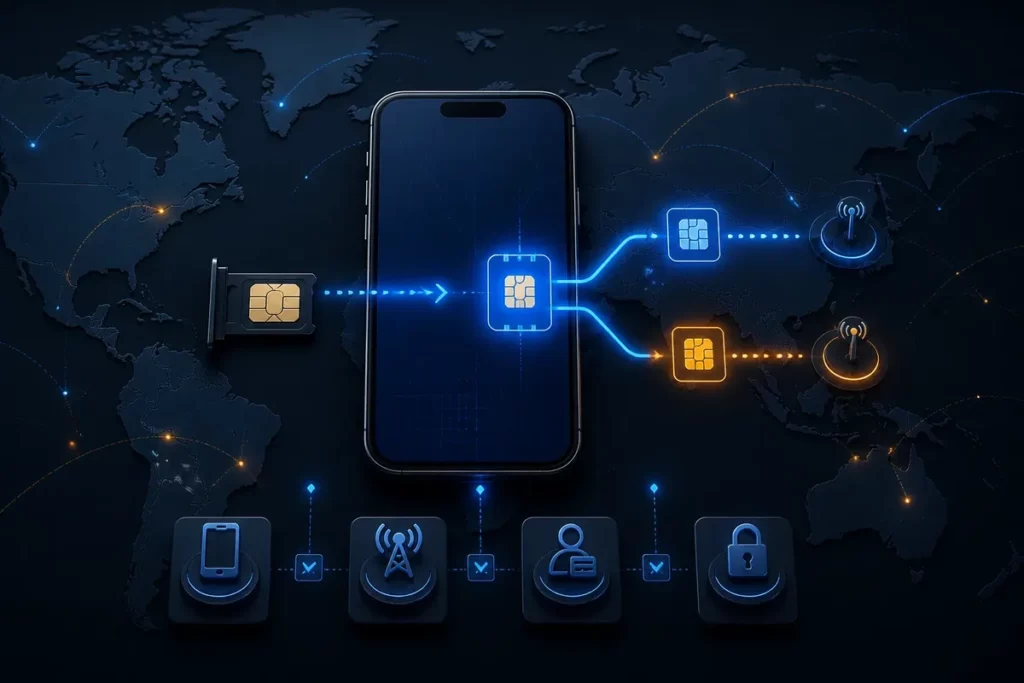
Or Dual SIM means using two distinct mobile lines, such as a personal line and a work line, or a home line and a travel-data line. It does not mean one subscription has been copied onto two SIM technologies.
A physical SIM can be removed. An eSIM stays installed as a software-based carrier profile until the carrier or user removes it.
Supported combinations vary by iPhone generation and regional hardware configuration, so check the specific model and market before buying a second plan.
Check iPhone, carrier and account eligibility before switching
Or confirm the iPhone, carrier, plan, and account before starting activation; an eSIM-capable phone can still lack a conversion route when the carrier has not enabled that function for the exact line or market.
The carrier decides whether direct physical-SIM-to-eSIM conversion is available for your account. Prepaid, business, legacy, and security-restricted accounts may require support assistance instead of a self-service option.
Use this checklist:
- Open Settings > General > About and record the model, software version, and carrier-lock information shown.
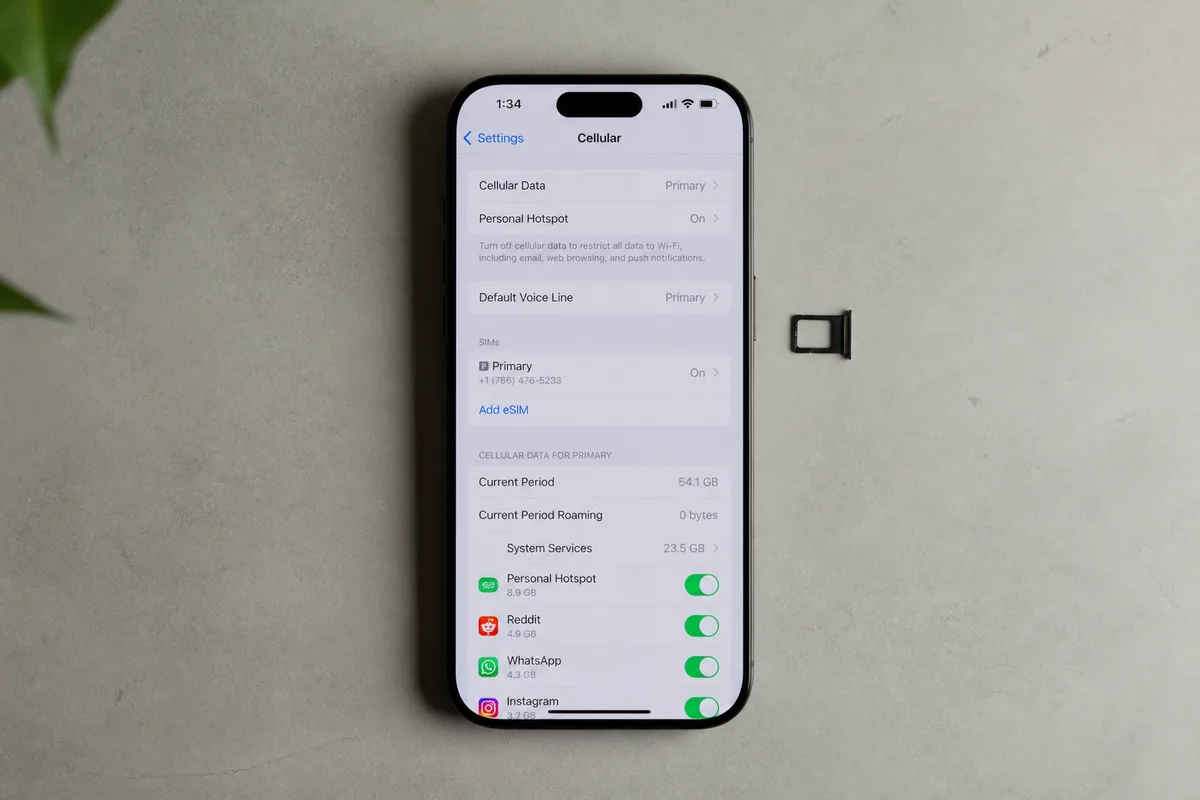
- Open Settings > Cellular or Mobile Data and inspect installed lines and available eSIM actions.
- Install available iOS updates before activation.
- Connect to reliable Wi-Fi and charge the iPhone sufficiently for the process.
- Confirm that the carrier supports eSIM activation or direct conversion for the exact plan and country.
- Prepare the carrier account login, identity verification method, QR code, or carrier app.
Or an absent Convert to eSIM button points to a missing route, not a universal verdict about every iPhone or every carrier service.
Check the account and carrier before blaming the iPhone.
Apple’s current eSIM guidance is available through its official iPhone eSIM support page. Carrier instructions remain necessary because activation credentials and account checks are provider-controlled.
How to convert a physical SIM to eSIM on the same iPhone
Or the direct same-iPhone route is to open Cellular settings and choose Convert to eSIM when the carrier exposes that option for the existing physical-SIM line. Keep the physical card inserted until the replacement profile passes every service test.
Follow these steps:
-
Open Cellular settings
Open Settings, select Cellular or Mobile Data, and choose the line currently using the physical SIM. The exact label can differ by iOS version and language.
-
Choose the conversion route
Select Convert to eSIM if the carrier has enabled direct conversion for the account. Follow the identity checks and on-screen confirmation.
-
Wait for activation
Keep the physical SIM installed while the eSIM profile activates. A short interruption, restart, or carrier verification request can occur.
-
Test the replacement line
Make an outbound call, receive a call, send or receive a text, and test mobile data before considering the conversion complete.
Or the number and plan generally remain attached to the same carrier account after a successful conversion, while the old physical SIM normally stops providing service.
Do not discard the card immediately. Keep it until the displayed number, voice service, messaging, and mobile data have all been verified.
When the iPhone offers a built-in conversion option
Or the built-in option is the shortest path because the iPhone and carrier coordinate the replacement on the existing line. The button applies only when the account and carrier support that workflow.
Activation credentials can still require identity verification.
When activation uses a QR code, carrier app or manual details
Or use Add eSIM when the carrier supplies a QR code, activation link, carrier application, or manual activation details instead of a conversion button.
- Choose Settings > Cellular > Add eSIM.
- Scan the carrier QR code or follow the carrier-app instructions.
- Choose manual entry when the carrier supplies server and activation details.
- Keep the profile installed if activation fails until the carrier confirms the recovery route.
A QR code can be linked to one account and may require verification before use. Do not repeatedly delete and reinstall a failed profile.
How to switch from eSIM back to a physical SIM
Or switching an eSIM back to a physical SIM is usually a carrier replacement process, not a simple iPhone toggle. Request a physical card for the existing number, activate it, and test service before deleting the old eSIM profile.
Use this sequence:
-
Request a replacement SIM
Contact the carrier through its support channel, store, or account portal and request a physical SIM for the existing line.
-
Insert the replacement card
Follow the carrier’s activation instructions and insert the physical SIM when the provider says the replacement is ready.
-
Confirm the active number
Check the displayed number and confirm that calls, texts, and mobile data use the replacement card.
-
Retire the old profile
Remove the eSIM only after the physical line works and the carrier confirms that the old profile is no longer required.
Or deleting an eSIM from the iPhone does not necessarily cancel the plan or close the carrier account.
Keep activation details until the physical line is stable. Ask the carrier what to do if the inactive eSIM remains visible in Cellular settings.
How to use a physical SIM and eSIM together on iPhone
Or an iPhone Dual SIM setup can keep two distinct lines available for work and personal use, or use a travel eSIM for data while retaining the home line for calls and verification messages.
Label both lines clearly in Cellular settings. Then select the default voice line and the line used for mobile data.
Allow Cellular Data Switching can use data from the other line when the iPhone needs connectivity. Turn it off when controlling foreign-network data matters more than automatic continuity.
- Set the work or personal line as the default voice line.
- Choose the intended mobile-data line.
- Review the line selected for individual contacts or message threads.
- Check iMessage and FaceTime settings after changing the active number.
- Disable data roaming on the line that should not connect abroad.
Or a travel eSIM does not remove roaming charges from the primary line by itself. The home line must have appropriate roaming and data settings, especially during a border crossing or international trip.
For travel planning, compare the line settings with this guide to setting up an eSIM before travel before departure.
Choose the right defaults for work, personal use or travel
Or a work-and-personal arrangement needs clear labels and a stable default voice line, while a travel arrangement usually assigns mobile data to the travel eSIM and keeps the home line available for selected calls or verification texts.
Do not leave automatic data switching enabled without checking the roaming consequences.
Fix eSIM activation and wrong-line problems on iPhone
Or start with internet access, current iOS, an enabled cellular line, a restart, and any available carrier settings update when an eSIM will not activate or shows No Service. Carrier-side provisioning remains a separate failure point.
Check these items in order:
- Confirm that the intended line is turned on in Cellular or Mobile Data.
- Check that the QR code or activation details belong to the correct account and have not already been used.
- Restart the iPhone and inspect for a carrier settings update.
- Review the default voice line, mobile-data line, roaming, and data-switching settings.
- Check iMessage and FaceTime line settings when messages or calls use the wrong number.
Or contact the carrier when the plan lacks conversion eligibility, QR credentials fail, No Service continues after provisioning, the device is locked, or activation never completes.
Do not delete a working or partly activated profile before the carrier confirms the recovery path.
Common causes include an unsupported plan, incomplete account verification, a security block, a number-porting delay, or a carrier lock that prevents a different provider’s line from activating.
The eSIM will not activate or shows No Service
Or verify the line status, account credentials, QR code, carrier provisioning, and network settings before removing the profile. The carrier must check provisioning when the iPhone appears ready but receives no service.
Restart once. Then ask the carrier to confirm the line status.
Calls, texts or mobile data use the wrong line
Or review the default voice line, mobile-data line, labels, data-switching option, roaming controls, iMessage, and FaceTime settings. Choose the required line manually for an individual communication when the iPhone or app supports that choice.
A travel line selected for data can coexist with a home line selected for calls. The selected line matters at the moment of use.
Safe switching
- ✅ Check the iPhone model, regional configuration, carrier, plan, and lock status first.
- 🔐 Keep the original SIM or eSIM until the replacement line is verified.
- 📞 Test calls, texts, mobile data, and the displayed number.
- 🌍 Review roaming and mobile-data settings before using a travel eSIM.
- 🛠️ Ask the carrier to verify provisioning when the conversion option is missing or activation fails.
Frequently Asked Questions
Can you switch between a physical SIM and eSIM on any iPhone?
No. The iPhone model, regional hardware, iOS version, carrier, plan, and lock status determine which routes are available. Check the iPhone settings and the carrier’s current requirements.
Can the same phone number work on a physical SIM and eSIM at the same time?
A conversion normally moves the number to the eSIM and deactivates the original physical SIM. Two active lines usually represent two distinct numbers, unless the carrier offers a specific multi-device or duplicate-line service.
Will converting a physical SIM to eSIM delete photos, contacts or apps?
Changing the SIM profile does not normally erase apps, photos, device-stored contacts, or messages. Contacts stored directly on the physical SIM may require a separate import before the card is retired.
Can you switch an eSIM back to a physical SIM on iPhone?
Yes, when the carrier offers a physical replacement for that line. Request the card, activate it, test service, and remove the old eSIM only after the replacement works.
Do you need Wi-Fi to activate an eSIM, and what should you test first?
Reliable internet access is needed for many activation routes, so Wi-Fi is the practical choice when available. Before removing the old SIM, test calls, texts, mobile data, and the displayed number; a missing Convert to eSIM option usually requires carrier eligibility checks.